


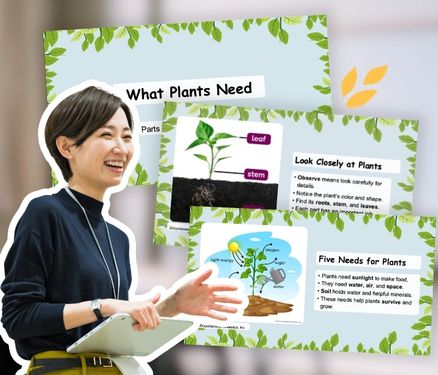
share


A presentation looks simple on the screen, but every teacher knows the hidden prep behind it: sifting through sources, organizing slides, finding relevant visuals, and adding engagement checks. Before you know it, you’ve spent hours building slides, taking up valuable planning time you simply don’t have.
What if you could spend less time creating presentations and more time focusing on meaningful interactions with students?
That’s where Britannica Studio comes in. Built specifically for educators, Studio is a teacher-first AI workspace that transforms Britannica’s verified, standards-aligned content into classroom-ready instructional materials. From leveled passages and vocabulary lists to assessments, summaries, and presentations, Studio helps teachers create and customize resources while maintaining control over their instruction.
Unlike general-purpose AI tools that may draw on unverified information, Britannica Studio grounds its outputs in trusted Britannica content and provides transparent source links that make it easier for educators to review and verify information.
One of Studio’s newest tools, Present It, helps educators turn any topic, instructional goal, or custom text into a structured, editable presentation. With relevant Britannica media, instructional content, and built-in speaker notes, Present It provides a starting point that educators can adapt to their students and learning goals.
Saving time is only half the story. The bigger opportunity is using that time to focus on instruction.
Start With Instruction, Not the Slide Count
Present It helps you move from an instructional idea to a complete presentation. Instead of staring at a blank canvas, you choose your grade level, preferred slide count, and source material, whether that’s Britannica content or text you provide.
Present It then generates an organized slide deck with instructional content, relevant visuals, multimedia, and speaker notes. You can review, edit, and customize the presentation before using it with students.
The key is to start with what you want students to learn and do.
For example, you can turn a brief instructional goal into a complete starting deck:
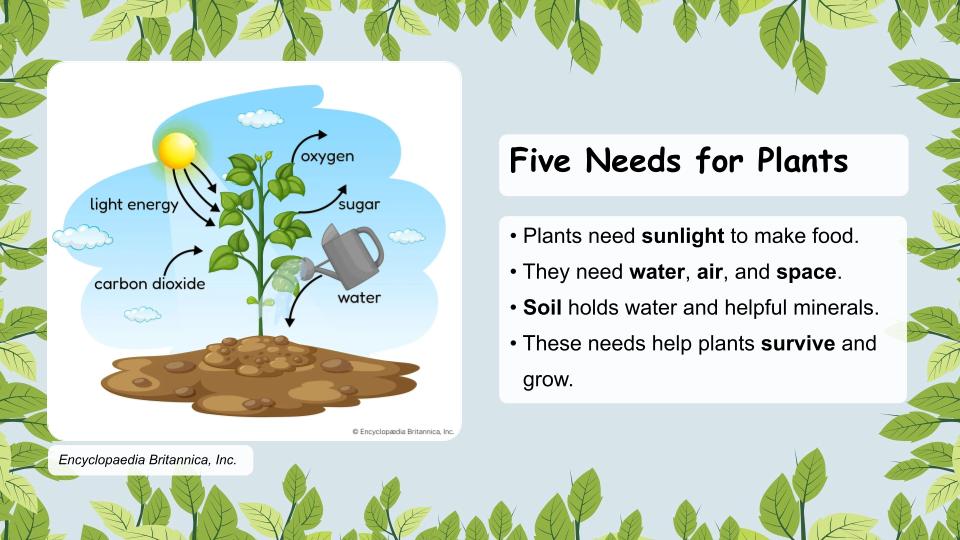
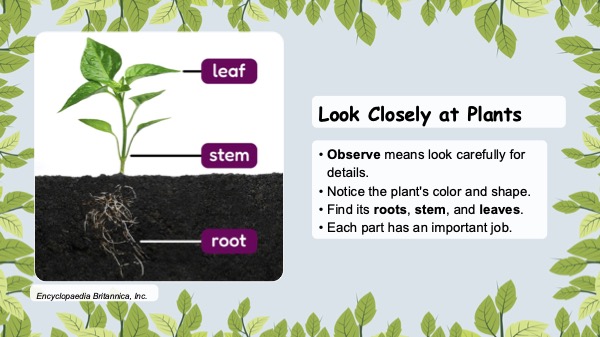
What Plants Need to Survive
Prompt: “Teach what plants need to survive. Show how roots, stems, leaves, and flowers support growth with simple visuals and observation questions.”
Download Sample PDF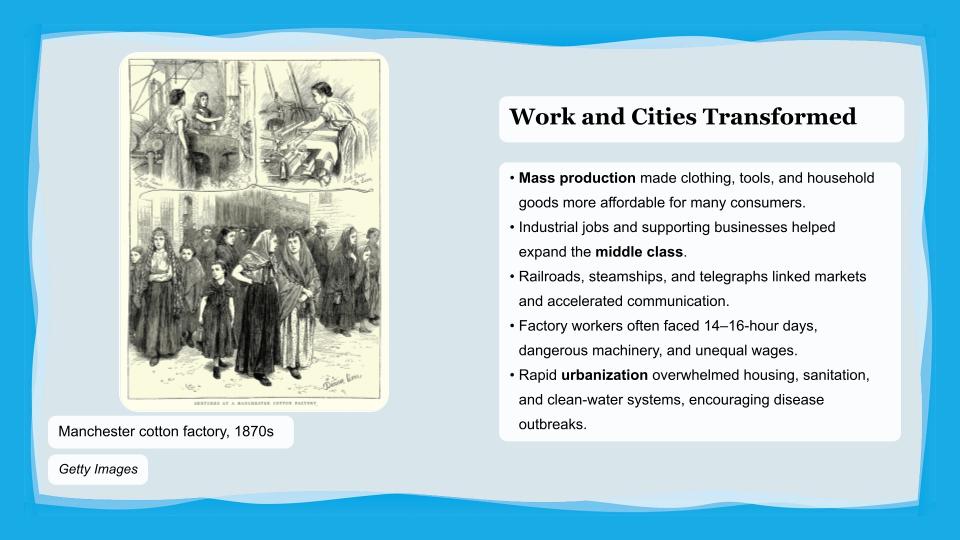
The Industrial Revolution
Prompt: “Explain the causes and effects of the Industrial Revolution, including opportunities for primary source analysis and discussion.”
Download Sample PDFThe more clearly you communicate the instructional purpose, the stronger the starting point Present It can provide.
💡 Prompt with Purpose
When writing a prompt for Present It, think beyond the topic. Include the types of activities, questions, or learning experiences you want in your presentation.
For example, if you’re creating a Grade 6 lesson on ecosystems:
Instead of:
“Create a presentation about ecosystems.”
Try:
“Teach how energy flows through an ecosystem. Include clear visuals, real-world examples, and a question asking students to predict what might happen when one part of a food web is disrupted and explain their reasoning.”
Small additions like compare, predict, analyze, or explain can help Present It create a presentation that encourages students to engage with the content, rather than simply receive information.
Built for Everyday Classroom Moments
Present It isn’t just for launching a unit or post-lesson review. It can become part of the day-to-day instructional workflow, helping teachers create presentations for individual lessons, concepts, or a connected sequence of learning across a unit.
Here are a few ways to put it to work:
📚 Teach & Build a Unit
Create presentations for core instruction, from introducing foundational concepts and vocabulary to building deeper understanding, discussion, application, and review.
🔍 Introduce & Preview
Build background knowledge before a new unit or preview essential vocabulary before a complex reading.
💡 Re-explain & Reteach
Present challenging concepts from a different angle using new examples, visuals, or explanations.
📝 Practice & Review
Reinforce learning with discussion questions, retrieval practice, or review decks before an assessment.
🧩 Support Activities & Inquiry
Provide context, directions, and guiding questions for collaborative work, research, or independent exploration.
👩🏫 Prepare for a Substitute
Create student-facing slides with detailed speaker notes to guide instruction in your absence.
Whether you’re planning tomorrow’s lesson or mapping out several days of instruction, Present It gives you a place to start without starting from scratch.
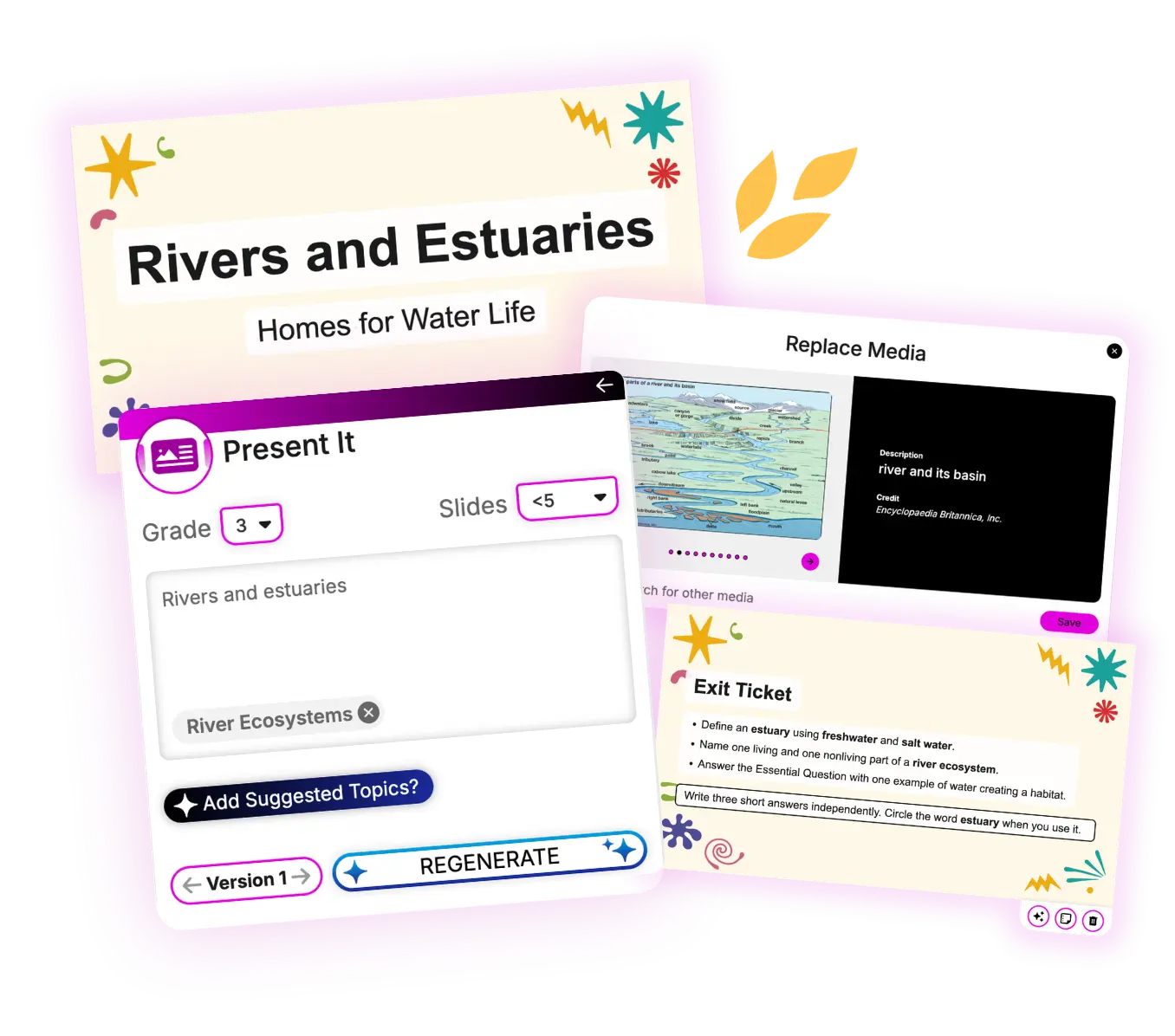
From Blank Slide to Polished Presentation: Creating Classroom Content with Britannica Studio
Discover how Present It in Britannica Studio helps educators create instructional presentations with relevant visuals, educational videos, speaker notes, and key concepts to support engaging classroom learning.
✓ Live attendees receive a CE certificate · Can’t make it? Register for the recording.
One Tool, Tailored to Every Learner
| Grade Level | Instructional Focus | Example Prompt |
|---|---|---|
| Pre-K–2 Visual & Concrete |
Focus on shared visual experiences, simple language, observation, and conversation. | TRY THIS PROMPT“Teach ocean habitats. Use simple language, introduce vocabulary (habitat, shelter), and add observation questions.” |
| Grades 3–5 Active Learning |
Turn slides into opportunities to predict, explain, compare, and discuss. | TRY THIS PROMPT“Teach how matter changes between solids, liquids, and gases using everyday examples and prediction prompts.” |
| Grades 6–8 Bridge to Inquiry |
Connect core content to questions students can investigate more deeply. | TRY THIS PROMPT“Explain how the Silk Road impacted cultural exchange. Include cause-and-effect questions to launch partner research.” |
| Grades 9–12 Critical Analysis |
Build context and create opportunities for students to analyze evidence, make connections, and support their thinking. | TRY THIS PROMPT“Examine the economic impacts of the Industrial Revolution with primary source evidence for students to analyze.” |
| Library Media Specialists & Higher Education Research Skill Building |
Create targeted research mini-lessons on source evaluation, information literacy, research skills, or digital citizenship. | TRY THIS PROMPT“Teach a lesson on evaluating online sources, generating search terms, and tracking citations.” |
Instruction evolves as students grow, and Present It scales across grade levels and instructional needs. The complexity of the content changes as well as what you’re asking students to do with it.
Across these examples, the educator defines the instructional purpose while Present It helps organize the content into a presentation that can be reviewed and adapted.
Make the Starting Point Uniquely Yours
Generating the presentation is just the beginning. Present It can give you a strong instructional starting point in minutes, but slides alone don’t equal instruction. Real learning happens in the interactions between slides: where you pause, what students notice, what you ask, what students discuss, and how they apply new concepts.
When your presentation is generated, your expertise takes over. Here are three ways to make that starting deck work for your students.
1. Look Through Your Students’ Eyes
Instead of asking “Do these slides look nice?” review the presentation through the lens of how your students will experience the lesson. Ask:
A few purposeful adjustments can turn a presentation that students watch into a lesson that they actively participate in.
2. Leverage Speaker Notes for Hidden Guidance
Present It automatically generates behind-the-scenes speaker notes. While student-facing slides remain clean and visual, the notes provide teachers with an additional layer of instructional support, including suggested pacing, teacher language or verbal cues, engagement strategies, and deeper content knowledge connected to the slide.
Because the guidance varies based on the purpose of each slide, the notes can help you think beyond what’s visible on the screen. Use what fits your lesson, adapt what needs adjusting, and add your own expertise where it matters most.
3. Customize the Content to Fit Your Classroom
A generated deck isn’t something you have to teach exactly as it appears. Present It offers editing flexibility so you can customize text; add, modify, and delete slides; replace or remove media; and even change the visual theme.
Delete what students already know. Add an example that connects to your community. Adjust language or explanations when students need additional scaffolding. Insert a challenge question when they’re ready to go deeper.
Present It also offers translation options to help educators adapt presentations for multilingual learning contexts. As with any generated or translated content, educators should review the results for accuracy, clarity, and appropriateness.
When you’re ready, use Present Mode to deliver your lesson directly in Britannica Studio or export the presentation for use in PowerPoint or Google Slides.
The goal is to shape the presentation around the students in front of you.
Turn Presentations into Active Learning
Rather than using visuals as passive decoration, make them central to student thinking.
Before explaining an image, give students time to observe it. Ask what they notice, what they wonder, or what evidence they can identify. Pause before a video and ask students to make a prediction. Afterward, have them revisit that prediction using new evidence.
A single image or video can become an opportunity to observe, predict, discuss, question, and make connections rather than simply something students view.
Move the Deck Through the Teaching Cycle
The same Present It deck can do more than deliver information. As you customize it, think about where opportunities for active learning can fit across the instructional cycle:
🗓️ Plan & Introduce:
Establish the learning purpose, activate prior knowledge, build background, and preview essential vocabulary.
📖 Teach & Practice:
Combine clear explanations and visuals with opportunities for students to discuss, predict, explain, and check their understanding.
🎯 Differentiate & Review:
Adjust content and supports based on student needs and revisit important concepts through retrieval and review.
🚀 Extend:
Use what students have learned to launch research, projects, debates, collaborative tasks, or independent exploration.
You don’t need every stage in every presentation. The goal is to think beyond a sequence of slides and consider how the deck supports the larger learning experience.
Your Expertise Remains the Core
Present It handles the initial heavy lifting, but the generated presentation is a starting point. Your knowledge of your students, curriculum, and instructional goals is what turns those slides into a lesson.
You decide where to pause, what to clarify, which examples will resonate with your students, when to invite discussion, and how to challenge them.
That’s the driving force behind Britannica Studio. Its AI-powered tools are designed to support the work educators already do, from developing instructional content to differentiating resources and assessing understanding. Present It extends that support to classroom presentations, combining trusted information, multimedia, and flexible editing tools in one workspace.
The ultimate question isn’t “What can AI generate?” It’s “What can I do instructionally with the time I’ve saved?”
Present It can build the starting point. You bring the knowledge of your students, the instructional decisions, and the moments that make learning meaningful.
Ready to bring your lessons to life?
Explore Britannica Studio and try Present It with your next lesson or unit. See how quickly an instructional idea can become an engaging, customizable presentation.
Want to see Present It in action? Explore our upcoming Britannica Studio webinars for practical examples, prompting strategies, and classroom applications.

Recent Blog Posts

Beyond the Answer: A More Thoughtful Approach to AI-Powered Research
Read More: Beyond the Answer: A More Thoughtful Approach to AI-Powered Research
AI Can Find an Answer, BUT Can Students Verify It?
Read More: AI Can Find an Answer, BUT Can Students Verify It?
Read, Play, Connect: Bringing Early Literacy to Life with Britannica
Read More: Read, Play, Connect: Bringing Early Literacy to Life with Britannica
6 Easy Ways to Gamify Britannica School
Read More: 6 Easy Ways to Gamify Britannica School
What Educators Really Think About AI: Insights from ISTE 2026
Read More: What Educators Really Think About AI: Insights from ISTE 2026
From 1776 to Today: The Big U.S. Timeline Quiz
Read More: From 1776 to Today: The Big U.S. Timeline Quiz
Using Britannica School and the World Cup to Score Big in the Classroom
Read More: Using Britannica School and the World Cup to Score Big in the Classroom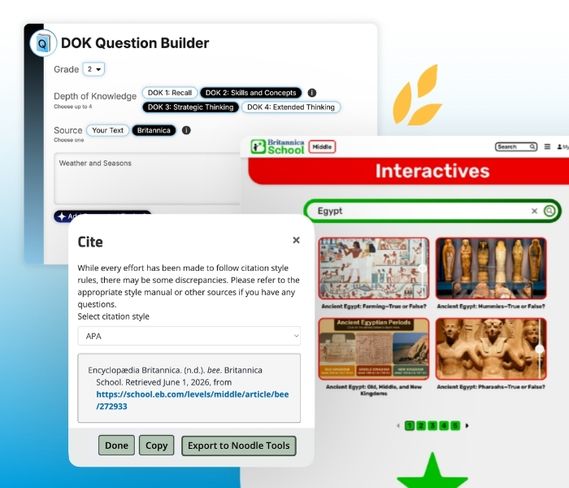
Teach Britannica, for Educators, with Love
Read More: Teach Britannica, for Educators, with Love
Join Our Newsletter
From tips and tricks to engaging activities, find
attention-grabbing content for tomorrow’s lesson.